The most valuable templates are contracts you have already negotiated and would happily sign again. Converting one does not just store it — Harmonity finds the values that change from deal to deal and turns them into fields, so the next person only has to fill in the blanks.
Convert a document
The whole flow runs from one dialog and takes a minute or two, most of it waiting.
- Open Library → Template Library and select Convert to Template.
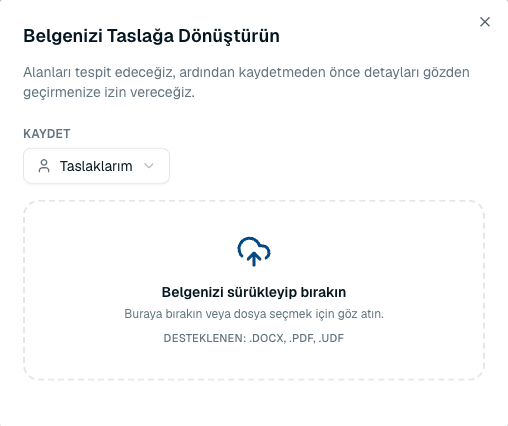 Source screenshots show the Turkish interface.
 - Drag in a
.docx,.pdfor.udffile, or browse to select one. - Wait while it works through three stages: preparing the document, identifying template fields, and saving.
Save the template
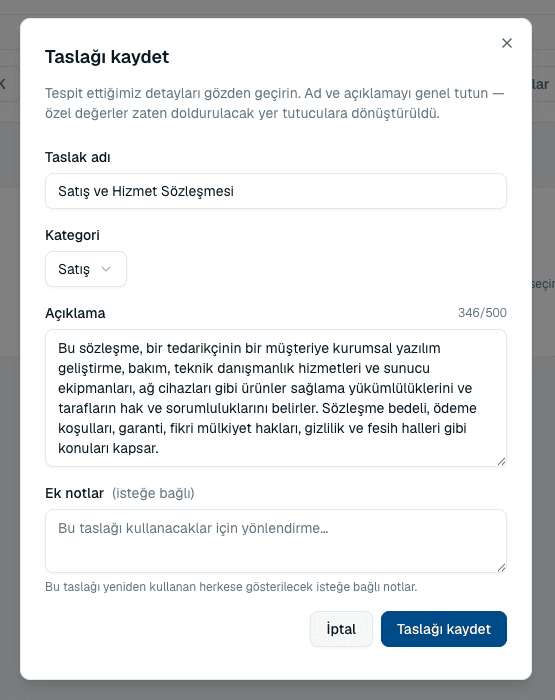
Conversion turns the values it finds into placeholders on its own — you are not asked to approve them one by one. What you do get is a Save template dialog for the details colleagues will search by:
- Template name
- Required, up to 255 characters. Name it for the situation — “Office rental contract” rather than “Template 3”.
- Category
- One of the nine categories. This is the main filter colleagues use, so choose honestly.
- Description
- Up to 500 characters, with a live character count. One sentence on what the agreement covers.
- Additional notes
- Optional guidance shown to whoever reuses the template — the place for “use this only for EU counterparties”.
Keep the library usable
- Categorise honestly
- Other is where templates go to be forgotten.
- Name for the situation
- “NDA — mutual, for vendor discussions” tells a colleague when to reach for it.
- Write the description for a stranger
- One sentence on when it applies, one on when it does not.
- Retire what is out of date
- A template that contradicts your current playbook costs more than it saves.
Common questions
Can I choose which values become placeholders?
No — conversion decides that on its own and replaces them before the save dialog appears. Open the resulting template and edit it directly if something was turned into a field that should be fixed text, or the other way round.
Can I convert a PDF?
Yes, .pdf is accepted alongside .docx and .udf. A DOCX converts more faithfully, so prefer it when you have both.
The conversion failed.
Check the file opens correctly and is within the 10 MB limit, then try again. A scanned PDF with no text layer has nothing to convert.
Where does the finished template go?
Wherever you set under Save at the start of the conversion — your personal library, or a workspace your team shares.
About this guide
Imported from the application Help Center on 23 September 2026. The original content date is preserved. Product workflows and screenshots have not been revalidated against current account permissions and availability.