The drafting screen turns a short description of what you need into a full contract, with the clauses that kind of agreement normally carries. It is the fastest way from a blank page to something worth editing — and everything it produces is an ordinary document you can change.
Draft with AI
- Open Tools → Drafting tool → Generate contract in the sidebar.
- Describe what you need in the box under What type of agreement do you want? — or choose one of the Quick picks if a common type fits.
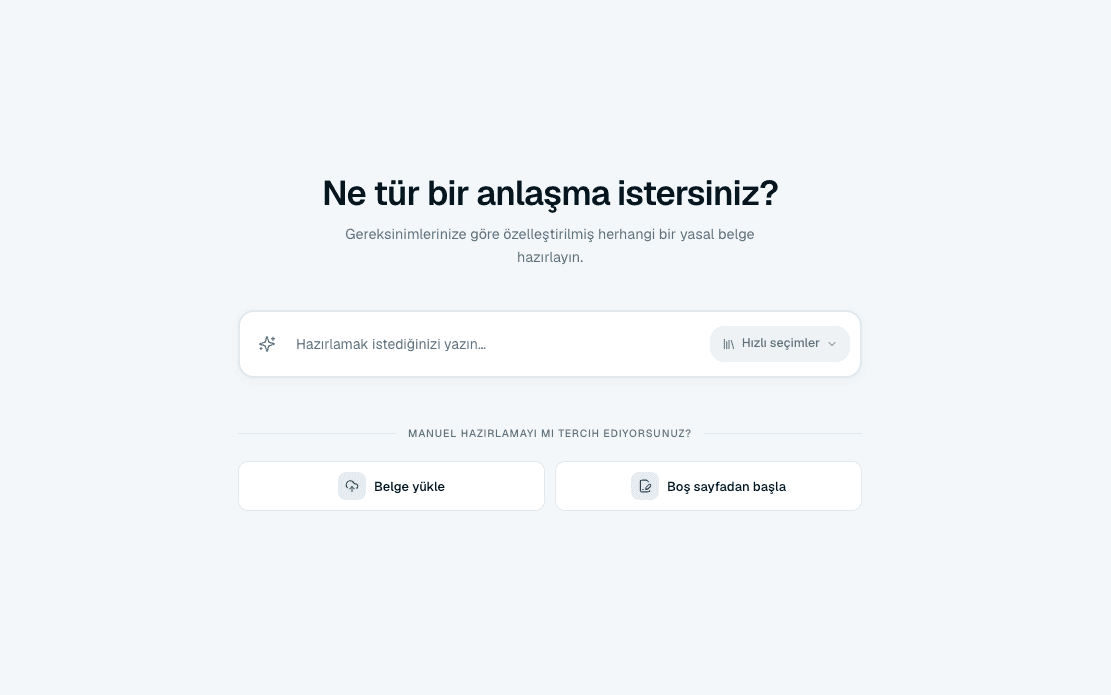 Source screenshots show the Turkish interface.
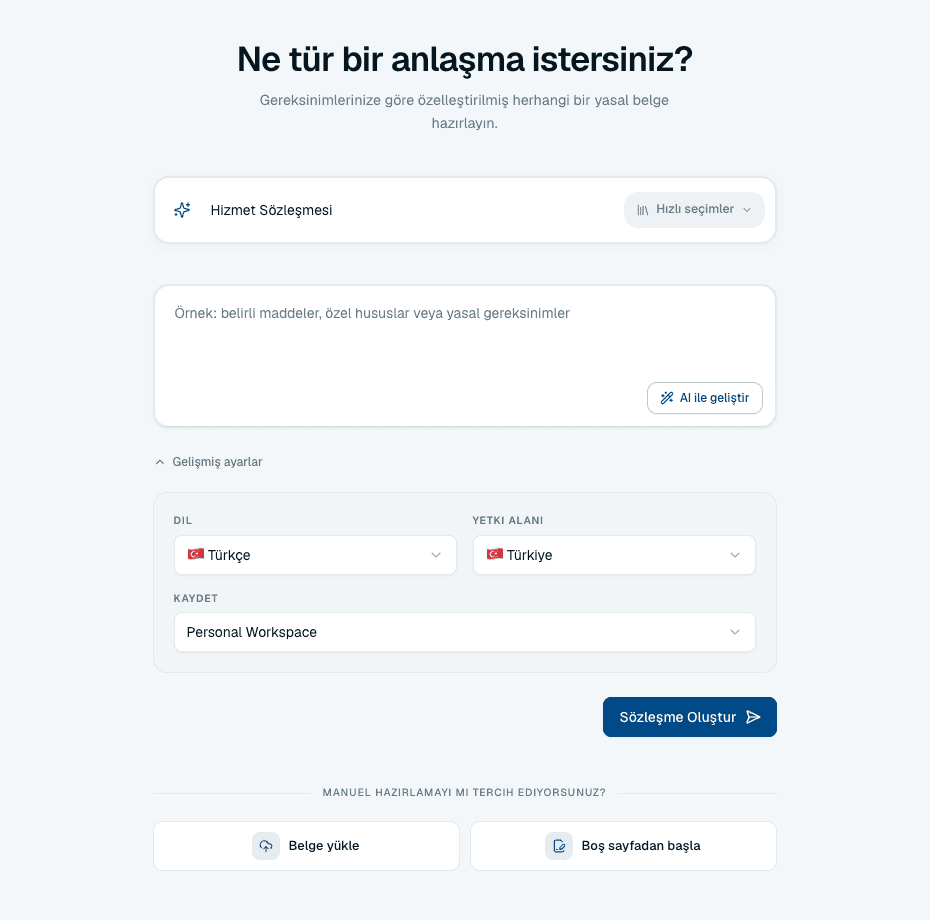
 - Open Advanced settings if you want to set the contract type, language, jurisdiction or destination workspace yourself.
- Select Generate Contract. You will see the four stages it works through — analyzing requirements, generating structure, applying standards, finalizing the document.
Advanced settings
Everything here is optional, but the defaults are English and United States — worth checking if neither is right for your deal.
- Contract Type
- Searchable list of known types. Turn on Custom type to enter your own; it must be at least three characters, contain letters, and cannot be only numbers.
- Language
- The language the contract is drafted in. Independent of your interface language.
- Jurisdiction
- The legal system the draft should follow.
- Additional requirements
- Optional free text for specific clauses, special considerations or legal requirements.
- Save to
- The workspace the finished draft is filed in, which decides who else can open it.
What happens next
The draft opens in the editor with its placeholder fields ready to complete. Nothing is sent anywhere — it is saved in the workspace you chose, visible in Files, and yours to edit, review or export.
Other ways to start
- Start from blank
- A link under Prefer manual drafting? on the same screen. Opens an empty document in the editor when you would rather write it yourself.
- Upload document
- Also under Prefer manual drafting?. Brings in a DOCX, PDF or UDF you already have.
- Browse templates
- Browse all templates opens the Template Library. Usually the best option when your organization has already approved wording for this kind of agreement.
Common questions
My contract type is not in the list.
Turn on Custom type and enter your own. It needs at least three characters and must contain letters — a number on its own is rejected.
Can I draft in Turkish?
Yes. Set Language in Advanced settings. It is independent of your interface language, so you can work in an English interface and draft in Turkish.
Where is my draft saved?
In the workspace selected under Save to, visible in Files. If you did not choose one, set it before generating — it decides who else can see the draft.
Can I change the contract type after generating?
The draft is an ordinary document once generated, so you can edit it freely. But a different agreement type is usually faster to generate again than to rewrite.
About this guide
Imported from the application Help Center on 23 September 2026. The original content date is preserved. Product workflows and screenshots have not been revalidated against current account permissions and availability.