The editor is deliberately narrow. It carries the formatting a contract actually needs and leaves out the rest, so the toolbar stays readable and the document stays consistent. The heavier work — review, questions, comments — happens in the side panel rather than the toolbar.
The toolbar
Left to right, the toolbar is grouped into five sets:
- History
- Undo and Redo.
- Type
- Font Size and font family.
- Emphasis
- Bold, Italic and Underline — with the usual Ctrl+B, Ctrl+I and Ctrl+U shortcuts.
- Colour and layout
- Text Color, Highlight, and alignment: left, center, right and justify.
- Structure
- Bulleted List, Numbered List, and Decrease / Increase Indent.

Select text for more
Selecting text brings up a small toolbar next to your selection. This is where the AI lives, and it is worth knowing about — it is faster than anything on the main toolbar:
- AI quick actions — including rewriting the selected clause to be more precise and enforceable, while keeping your defined terms and numbering intact.
- Bold and Italic, plus Link for adding a hyperlink.
- Comment to start a discussion on exactly that wording, and list formatting.
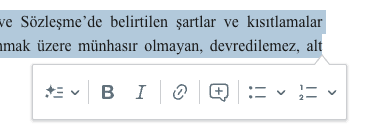 Source screenshots show the Turkish interface.
Saving your work
The editor autosaves as you type, and the header shows a saving indicator while a change is being stored. There is also an explicit Save in the document toolbar for when you want to be certain before closing the tab. If your connection drops, finish your sentence — the pending change is written once you are back.
The side panel
Six tabs sit beside the document, and the last only appears when it has something to show:
- Summary
- An overview of the contract and its key details, and where a completed review's summary, risk score, negotiation points and recommended actions appear.
- AI Review
- Findings from the last AI review, with apply and reject actions. The panel inside is headed Contract Analysis.
- Ask
- Question this document directly and get answers drawn from its own text.
- Tasks
- Follow-up items attached to the document.
- Collaborate
- Comments and the approval workflow.
- Fields
- Appears only when the document still contains placeholders to fill in.
Export a document
- Open the document and find More options in the document toolbar.
- Choose Export to DOCX for an editable Word file, or Export to PDF for a final, non-editable copy.
- Wait for the file to be prepared, then save it from your browser.
Common questions
Where are headings, tables and find-and-replace?
They are not in this editor. The toolbar carries the formatting contracts actually need — emphasis, colour, alignment, lists and indentation — and nothing else. Structure a contract with numbered lists and indentation rather than heading styles.
Does the editor have track changes or version history?
Not currently. Changes are saved directly to the document. To keep a record of a version before a round of edits, export it to DOCX or PDF first.
Can two people edit the same document at once?
Collaboration runs through comments and approvals in the Collaborate tab rather than simultaneous typing. Agree who is editing, and use comments for everything else.
My pasted text from Word looks wrong.
Pasted Word content keeps its own formatting, which can clash with the document's. Retype or re-apply the formatting you want from the toolbar rather than fighting the pasted styles.
About this guide
Imported from the application Help Center on 23 September 2026. The original content date is preserved. Product workflows and screenshots have not been revalidated against current account permissions and availability.