Generated drafts and templates leave placeholders wherever a detail belongs — party names, dates, amounts. The Fields tab collects every one of them in a list so nothing ships with a blank still in it.
Placeholders appear in the document as highlighted tokens like [[[CustomerName]]]. They are ordinary content, so you can type over them directly — but working from the Fields tab is faster and much harder to get wrong.
Fill the fields
- Open the document and select the Fields tab in the side panel. It only appears when the document actually has placeholders.
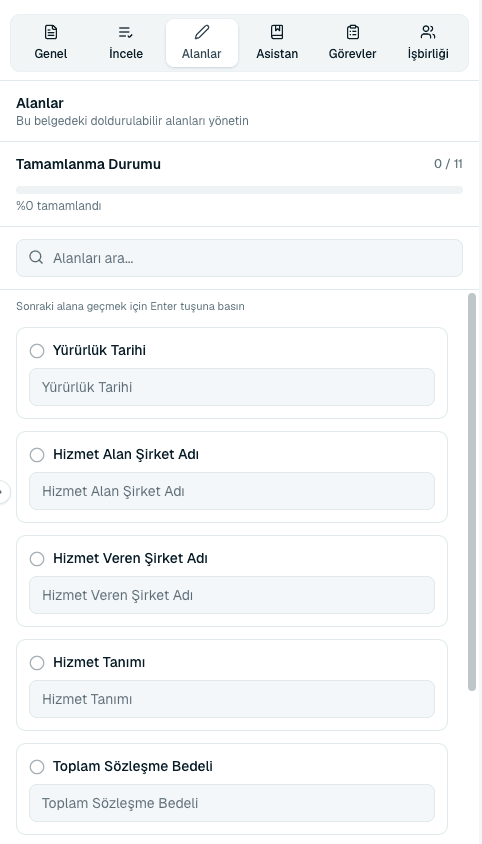 Source screenshots show the Turkish interface.
 - Work down the list. Selecting a field highlights it in the document so you can see the sentence it sits in.
- Enter the value. It is written into every place that placeholder appears.
- Press Enter to jump to the next field without reaching for the mouse.
Tracking completion
The tab shows a Completion Progress bar and a percentage. It is the quickest way to answer “is this draft finished?” without reading the whole document — at 100% there is nothing left blank.
Common questions
The Fields tab is not showing.
The document contains no placeholders — either it never had any, or every one has been filled in. Uploaded documents usually have none, since placeholders come from generated drafts and templates.
The fields are greyed out and I cannot type.
Fields are read-only unless you have edit access to the document. Ask whoever owns it to give you an editor role in that workspace.
Can I add a placeholder of my own?
Yes. Type the token directly in the editor using the same triple-bracket form and it will be picked up as a field.
About this guide
Imported from the application Help Center on 23 September 2026. The original content date is preserved. Product workflows and screenshots have not been revalidated against current account permissions and availability.